Find your pixel
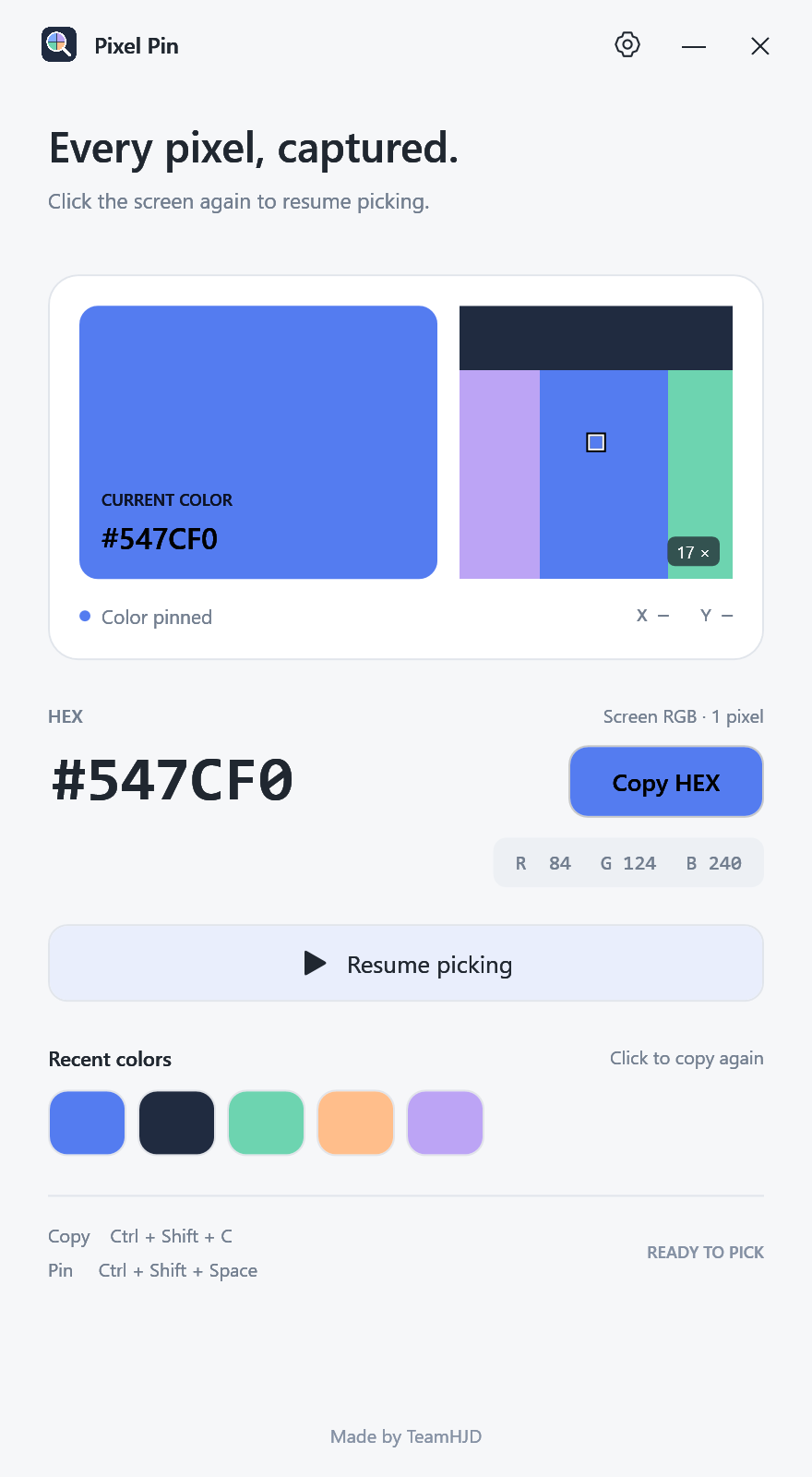
Move your pointer to see colors update live. The small square in the magnifier marks the pixel you’ll pick.
 Pixel PinDownload
That perfect shade, down to the pixel.
Point to it, click to pin it,
and copy it in the format you use.
01 One click to pin
02 Five color formats
03 No installer needed
PICK. PIN. COPY.
Stay in your flow. Bring just the color you need.
Move your pointer to see colors update live. The small square in the magnifier marks the pixel you’ll pick.
Click the screen to hold a color. Click again whenever you’re ready to keep looking.
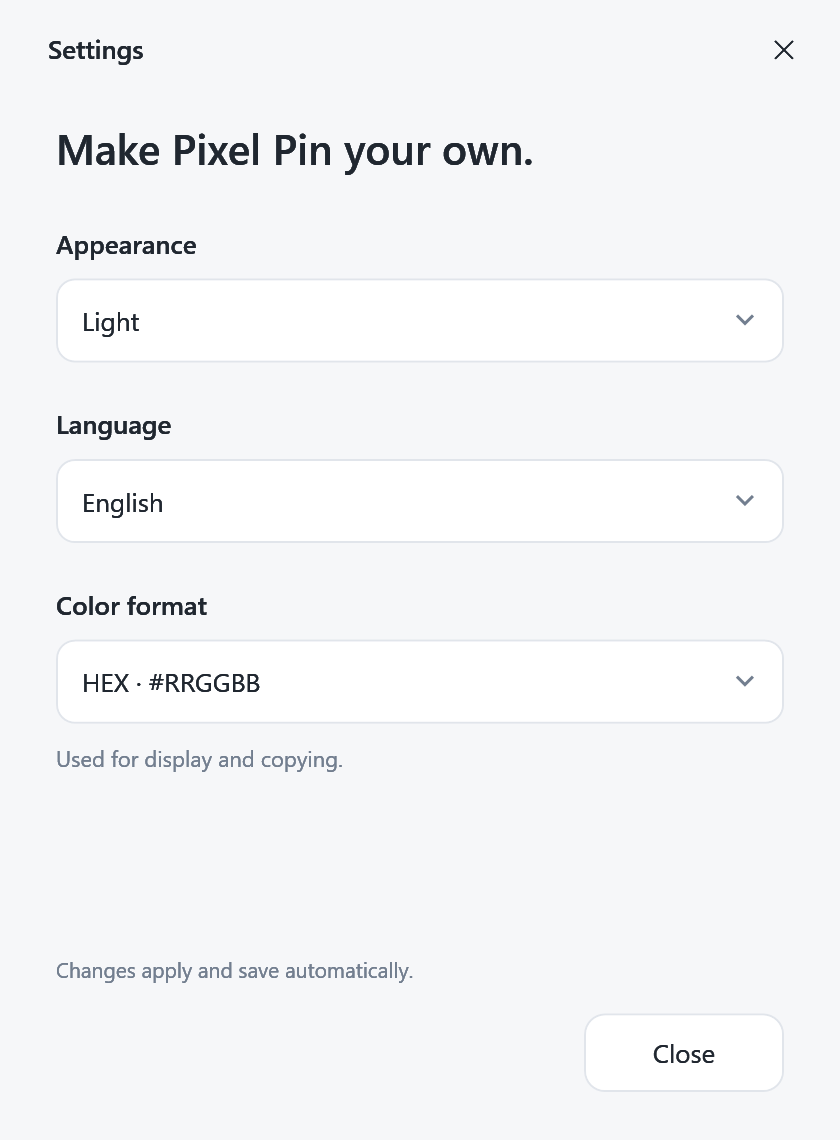
HEX, RGB, HSL, HSV, or reference CMYK. Choose a format once in Settings, then copy with a click.
Copy colorCtrl+Shift+C
Pin / resumeCtrl+Shift+Space
Screen clicks also reach the app underneath. Use the shortcut to pin a color without clicking.
A COLOR, YOUR WAY
For a website, a game UI, or your next idea.
Use the color format that fits your work.
Try the sample colors here.
To pick pixels from your screen, download the app.
#547CF0Try copying the color code.
MAKE IT YOURS
Light, dark, or follow your device.
Pixel Pin keeps up when your system theme changes.
Buttons, settings, and helpful hints in your language.
Your choice stays with you next time.
An always-on-top window and your last eight colors.
Copy-button text adjusts to stay easy to read.
WHAT’S NEW
Take a look at the latest features and refinements.
GOOD TO KNOW
No account or installer needed. Download the Windows ZIP, extract it, and run PixelPin.exe. The .NET runtime is already included.
The current download is not code-signed, so Windows reputation-based protection may warn when you run it for the first time. Check that your download comes from our official GitHub release and matches the supplied SHA-256 checksum. How Windows app protection works
Where supported, Pixel Pin uses high-precision scRGB capture with Windows SDR white-level correction. The output is sRGB, so it cannot reproduce the full brightness or gamut of HDR. The app labels compatibility capture when DirectX is unavailable.
CMYK is a reference conversion from screen RGB, without an ICC print profile. Check your final print colors in the profile and output setup you’ll actually use. HSV and CMYK notation are not standard CSS color syntax.
Locally, in your PC’s %LOCALAPPDATA%\PixelPin folder. Screen images and color history are not sent to a server. This website does not use analytics tracking.
Windows 10 / 11 · v1.1.0 · 57.4 MB